Before buying Shadowrocket, confirm the App Store listing, then check its price, compatibility, and purchase confirmation screen. This guide walks first-time buyers and users reinstalling the app through search, verification, payment, download, and first launch. It also explains the difference between buying the app and configuring a connection. The import instructions assume you already have your own provider and subscription.
Before You Buy: Store, Cost, and Device Requirements
Shadowrocket is a closed-source commercial app for Apple platforms, available exclusively through the App Store. The steps here focus on iPhone and iPad. For Mac, Apple TV, and Apple Vision compatibility, as well as system requirements and purchase eligibility, refer to the App Store listing. Don’t buy based on a search result’s name alone; open the full product page and verify the listing first.
Shadowrocket is a one-time purchase. The current price, currency, and purchase terms are shown on the App Store listing and purchase confirmation screen. Buying the app does not include a service plan. It gives you the right to use the app, but does not provide connection settings. Import instructions assume you already have your own subscription; this site only explains how to use the app.
Before you begin, make sure your device can open the App Store and that the Apple Account you’ll use can make purchases. If you’ve bought the app before, check your purchase history and current sign-in status before confirming another order.
App Store Search and Purchase: Five Steps
Search directly in the App Store on your device, or start from our App Store download guide and open the product listing from there. Either way, make sure you land on the App Store page for app ID 932747118. This guide does not collect payment.
-
Search by name
Open App Store → Search, enter the full name
Shadowrocket, and open the product listing in the results. Don’t search only for “Shadowrocket” and identify the app by icon color, or rely on its position in the results. -
Verify the listing
Check the product page for the name Shadowrocket, developer Shadow Launch Technology Limited, and the official icon. Then make sure the product link includes
id932747118. You can use the product page’s share option to view or copy the link for verification. -
Check purchase requirements
Review the listed price and compatibility information. Refer to the App Store page for system requirements and purchase eligibility. If your device is marked incompatible, check the requirements before proceeding; payment won’t resolve a compatibility issue.
-
Confirm payment
After tapping the price button, review the system purchase confirmation screen and verify the app name, amount, and account. Confirm with Face ID, Touch ID, or your passcode as prompted. The available confirmation method depends on your device and account settings.
-
Wait for installation
After payment succeeds, wait for the App Store to finish downloading the app. Open it when the button changes to Open. If the download is still in progress, check your network connection and available storage rather than trying to buy the app again.
Payment confirmation and installation are separate steps. If the purchase appears in your history but the app hasn’t finished installing, troubleshoot the download. If payment failed, check your App Store account or payment method. Knowing which step failed helps avoid mistaking a download delay for an unsuccessful purchase.
Verify the Developer, Official Icon, and App ID
Check the name, icon, and app ID together. The name helps you find the listing, the icon helps you recognize it, and the developer name and app ID help confirm its identity. A rocket image, similar spelling, or matching description alone isn’t enough to verify the app.
- App name: It should be Shadowrocket. Check the full spelling; don’t rely on a search term or a recommended listing title.
- Developer: Verify Shadow Launch Technology Limited. If the page uses a different language or layout, look for the developer field in the product information. Don’t skip this check.
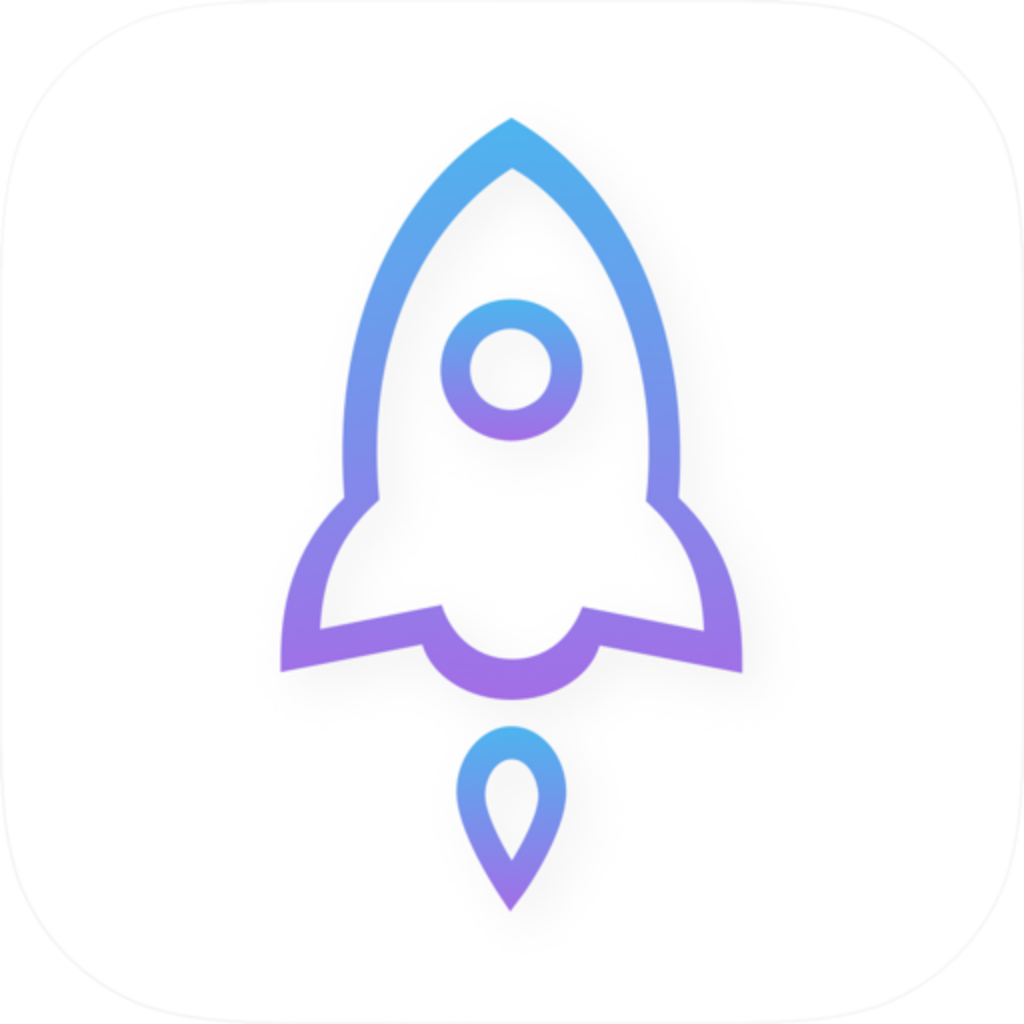
- Official icon: Compare it with the official icon below. The rocket with a blue-violet outline on a white background can help identify the app, but verify the developer and app ID as well.
- App ID: The fixed identifier in the product link is
id932747118. A regional segment or name in the URL is not a substitute for this numeric ID.
Bottom line: Stop if the listing details don’t match
If the name is only similar, the developer is different, or the app ID doesn’t match, leave the purchase flow and reopen the product page from our App Store download guide. Don’t substitute “the icon looks close enough” for verification.
The app ID also helps confirm that you’re viewing the same product listing. Prices, descriptions, and availability may vary by region, but the identifier should remain the same. If the App Store says the app isn’t available in your current store, follow that message; repeated searches aren’t a substitute for checking before purchase.
First Launch: Installation Doesn’t Complete Connection Setup
After installing Shadowrocket, open it and get familiar with Home, Config, and Settings. Home shows servers and connection status, Config manages configuration files, and Settings controls app preferences. Your purchase history is in the App Store; connection settings are configured in the app. One cannot replace the other.
- Prepare your configuration first: If you already have your own provider and subscription, follow the guide to add the relevant details. An App Store receipt is not a Subscribe link.
- Then check the connection: When you first try to connect, the system may ask to add a VPN configuration. Read the prompt, make sure it was triggered by your action, then follow the instructions to authorize it.
- Check the routing mode: Go to Home → Global Routing and review the current selection. A successful purchase does not automatically add suitable routing rules to Config.
- Finally, check automatic connection: If you need connections to start automatically, review Settings → On Demand. This controls connection triggers; it does not complete an App Store purchase or replace valid server settings.
Config, Proxy, Direct, and Scene in Global Routing are different routing modes, not purchase tiers. The comparison below is for basic post-installation checks. The Config recommendation assumes you already have a working configuration. Scene depends on configured conditions and does not need to be set up when verifying a purchase for the first time.
Config
RecommendedHandles connections according to the selected configuration. Rules can specify DIRECT, PROXY, or a policy, so this mode does not simply send all traffic through one route.
Best for: Everyday use with a working configuration and rule-based connection handling.
Proxy
Routes connections within its scope through the selected proxy instead of deciding each route using Config’s usual rules. The selected server must still be reachable.
Best for: Temporarily comparing the effects of your current configuration rules and proxy connection.
Direct
Uses a direct route to reach the destination without the selected proxy server. It won’t fill in server settings or prove that there’s a problem with your app purchase.
Best for: Comparing direct access over your device’s current network.
For example, opening the app with the connection switch off only confirms that installation is complete. If some destinations remain unreachable after you turn it on, check your existing servers, DNS, and rules. Buying the app again won’t fix connection settings; continue troubleshooting in the user guide.
Reinstalling, Payment Failures, and App Store Search Issues
When something goes wrong, first identify whether the issue is with the product listing, payment confirmation, download progress, or an in-app connection. Note the exact App Store error message; repeatedly tapping the same button won’t help identify the cause. Don’t post full order details or account information on a public page.
Why can’t I find Shadowrocket in Search?
In App Store → Search, enter the full English name, then open the product from our App Store download guide. If the listing says the app isn’t available in your current store, check your account’s store availability as directed. If it says your device is incompatible, review the system requirements on the product page. Not finding the app in Search doesn’t mean its name has changed.
Why am I seeing a price after buying it before?
Go to App Store → Account and check the Apple Account used for purchases and its purchase history. Confirm that the history matches your original purchase, then verify that the product ID is 932747118. Check how the purchase relates to the account you’re currently using before paying again. The App Store determines whether you can download it again.
How many times should I retry after a payment is declined?
Stop retrying and read the exact system error first. Check the payment method and billing information in your Apple Account payment settings. Then check your App Store purchase history to see whether the transaction succeeded. The app icon not appearing on your Home Screen doesn’t, by itself, mean the payment failed.
I bought it, but the download is stuck. What should I do?
Check your network connection and available storage, then return to the App Store to review download progress. If needed, pause and resume the download using the options provided by the store. If the purchase is already in your history, focus on getting the download to resume. Once installation is complete and the button says Open, continue with in-app configuration.
When switching to another Apple device, check its compatibility, the current App Store account, and purchase history before downloading the app again. Refer to the App Store listing for cross-device purchase eligibility; don’t assume that every Apple device is compatible just because the app installed on your original device.
Post-Purchase Checklist
The process isn’t complete just because the purchase button has disappeared. Confirm that you bought the right app, installed it successfully, and know that configuration—not another purchase—is the next step. Review these items in order:
- The app is named Shadowrocket, the developer is Shadow Launch Technology Limited, and the app ID is 932747118.
- The amount matches the system purchase confirmation screen, and you can verify the transaction in your App Store purchase history.
- The App Store button says Open, and the app launches successfully. If the download is still pending, troubleshoot the installation first.
- You understand that buying the app does not include a service plan, and you’ve handled purchase issues separately from connection setup.
- If you already have your own provider and subscription, continue with the guide to check importing, VPN configuration authorization, and Global Routing instead of buying the app again.
For questions about price, compatibility, or purchase eligibility, check the App Store product page. For import or routing questions, continue to the guide on this site. Choosing the right place for each issue keeps the steps clear and makes them easier to review later.